Take walk-in payments with a QR code
Guests scan a poster at your front desk, pick a class starting soon and pay on their own phone.
Open Settings and choose the Walk-in payments tab.
Turn on Accept walk-in payments.
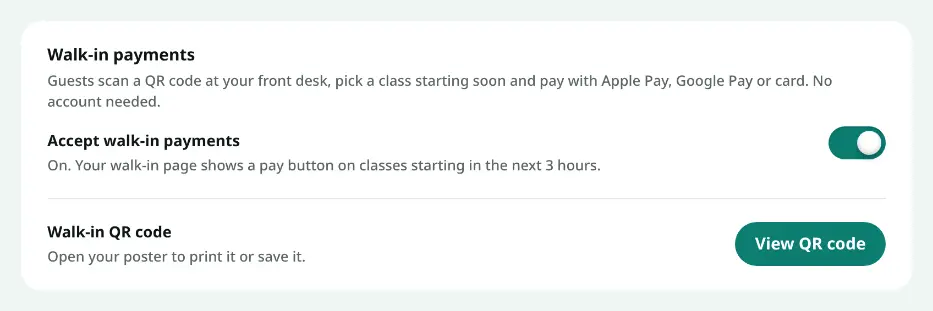
Walk-in payments in Settings. Under Walk-in QR code, choose Generate QR code. After the first time, the button says View QR code.
In Your walk-in QR code, choose Print to print the poster, or Save to keep it as an image. Copy link copies the address of your walk-in page.
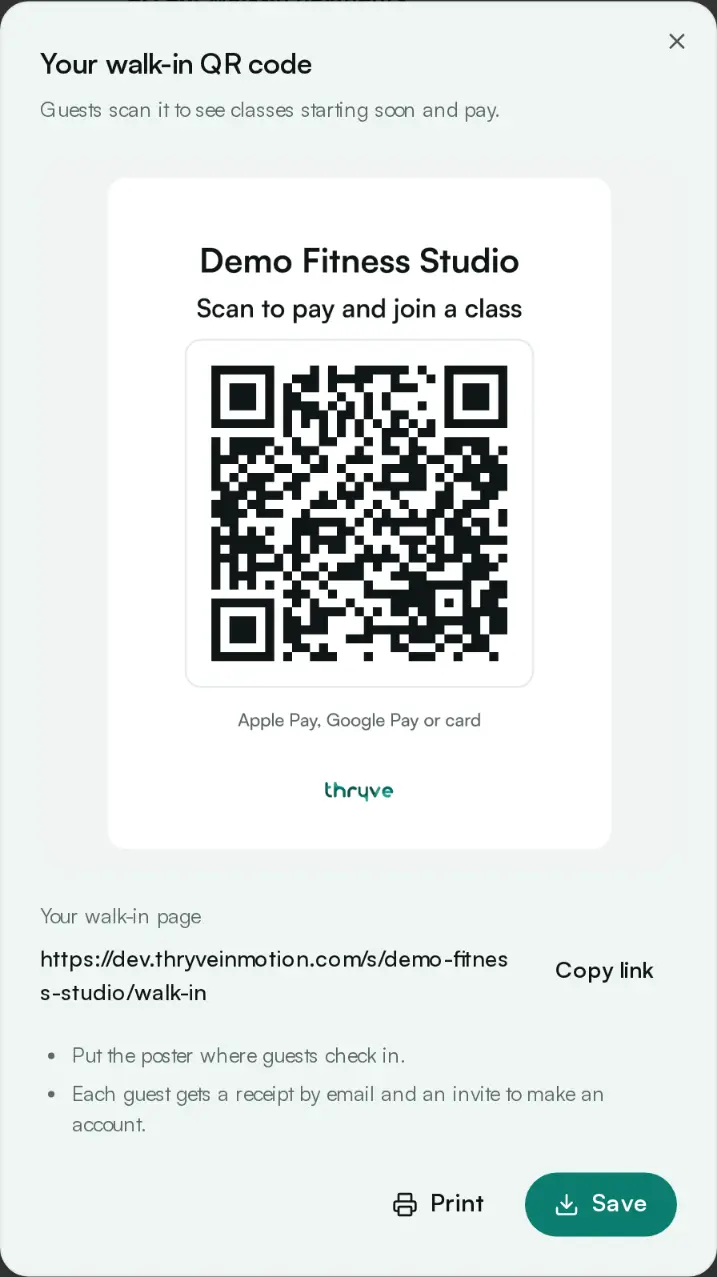
Print the poster or save it as an image. Put the poster where guests check in.
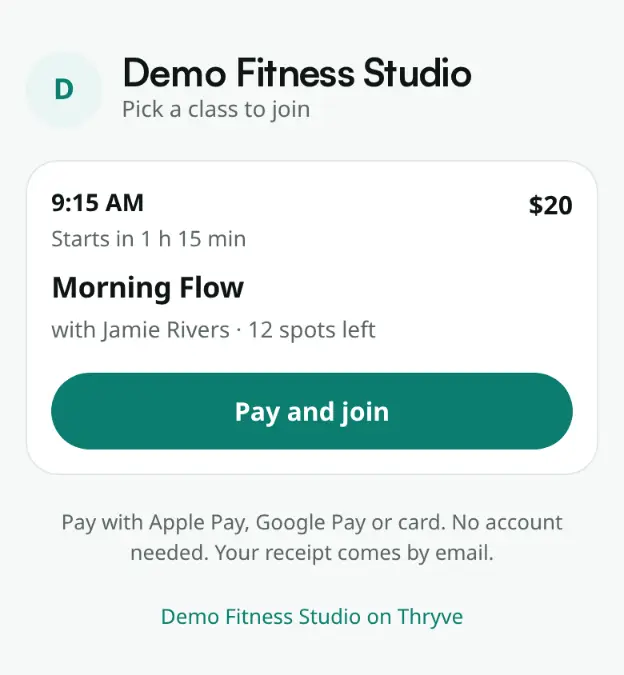
What guests see
The code opens your walk-in page. It lists the classes starting in the next 3 hours, and classes that started up to 15 minutes ago. The guest chooses Pay and join and pays with Apple Pay, Google Pay or a card. No account is needed.
After they pay
Each guest gets a receipt by email with their 6-digit check-in code and an invite to make an account. If check-in is already open for the class, they are checked in straight away. If not, they give the front desk their code.
Stripe comes first
Walk-in payments need Stripe connected. Until then, or while Accept walk-in payments is off, the walk-in page lists your classes and asks guests to pay at the front desk.
A full class shows Class is full. Free classes ask the guest to sign in to join. Each walk-in payment is a card booking with Thryve's usual 5% fee.