Connect Stripe and get paid
Set up your Stripe account so members can book and pay for your classes.
Open Today. Under Finish setting up, choose Connect next to Connect payments. You can also open Settings, then Payments, and choose Set up Stripe payments.
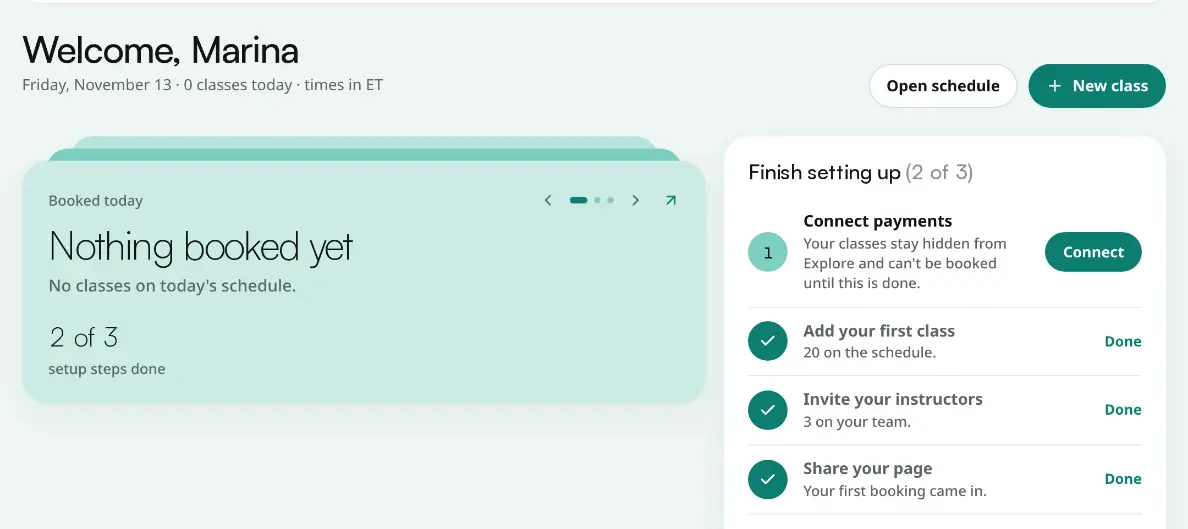
Until payments are set up, Today lists Connect payments first. 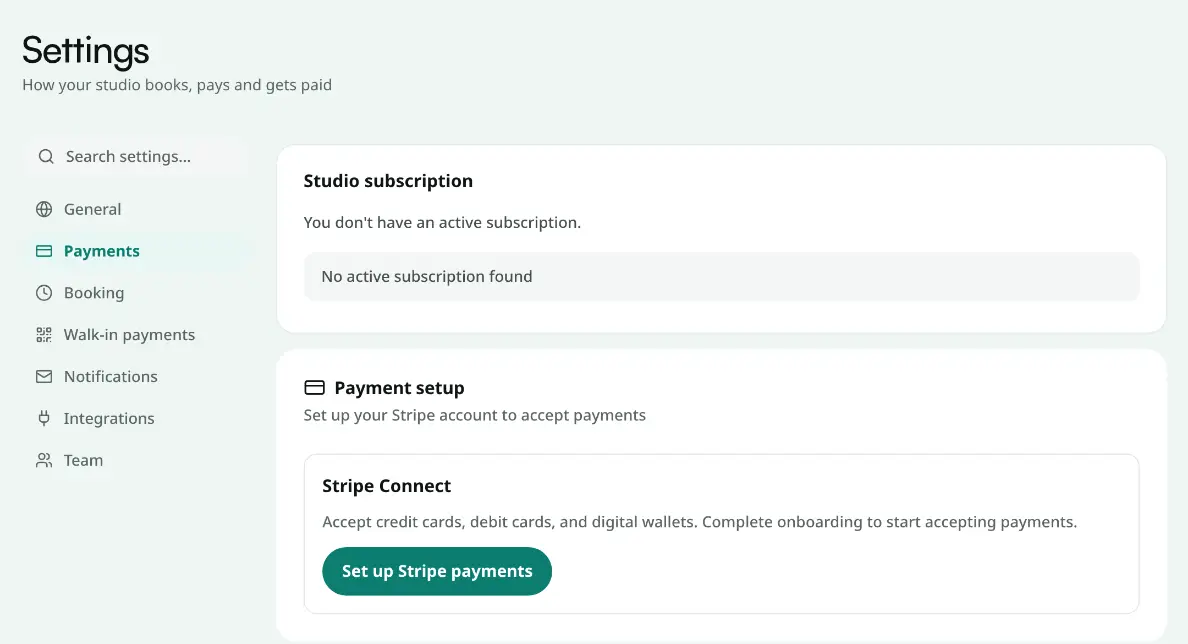
You can also start from Settings, then Payments. Read the Platform fee agreement and choose I acknowledge.
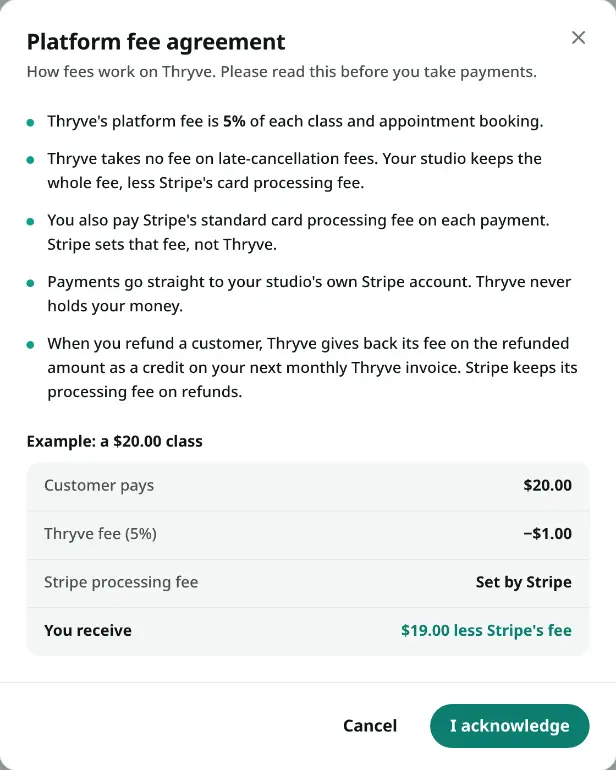
Thryve shows the fee terms before Stripe opens. Choose Enable payments. Have your business details (EIN or SSN), your bank account for payouts and your business address and contact details ready. It takes about 5 to 10 minutes.
Fill in Stripe's form on the Complete your payment setup page. If you already use Stripe, Stripe asks you to sign in to that account. If its pop-up is blocked, choose Continue on Stripe to finish on Stripe's own page.
When you see Payments are on, members can book and pay for your classes.
During studio setup
The last screen of studio setup, Get paid for bookings, opens the same Stripe form. If you chose Do this later, finish from Today as above.
Before Stripe is connected
Your classes stay hidden from Explore and can't be booked until Stripe has turned on payments for your account.
Your Stripe account is yours
Payments go straight to your own Stripe account. Thryve never holds your money. You can sign in to your Stripe Dashboard at any time.