Your storefront: cover, logo and link
Edit the page members see when they open your studio on Thryve.
Open Storefront in the sidebar.
Under Basics, check your studio name, category and About your studio. Storefront link is the address of your page.
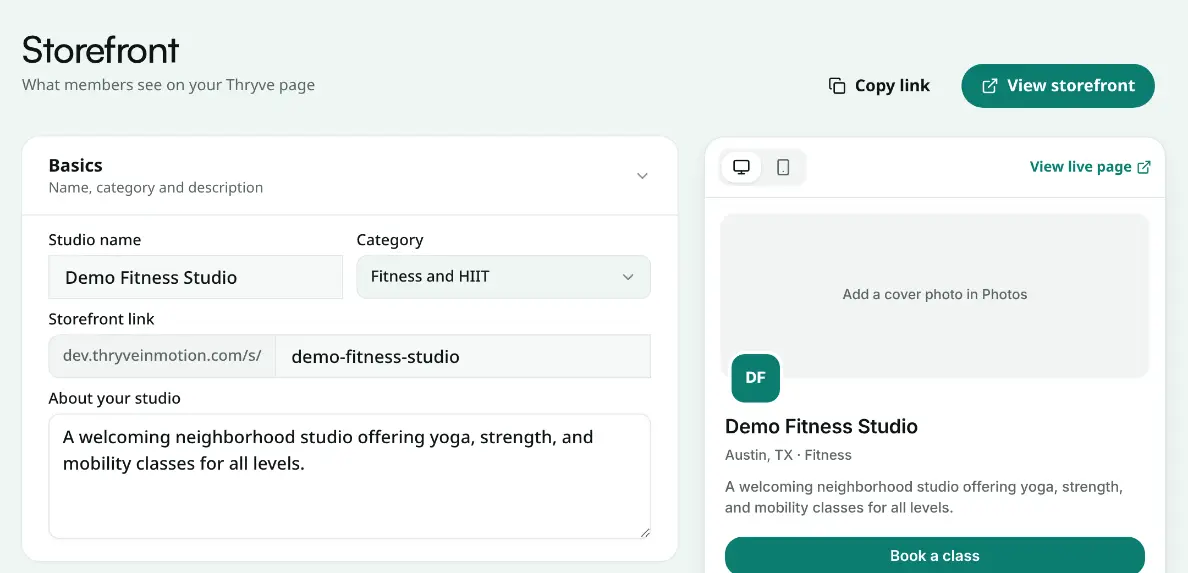
The preview on the right updates as you edit. Under Photos, choose Upload Photo for your logo and Upload cover for your cover. A cover of 1200 × 460 or larger works best.
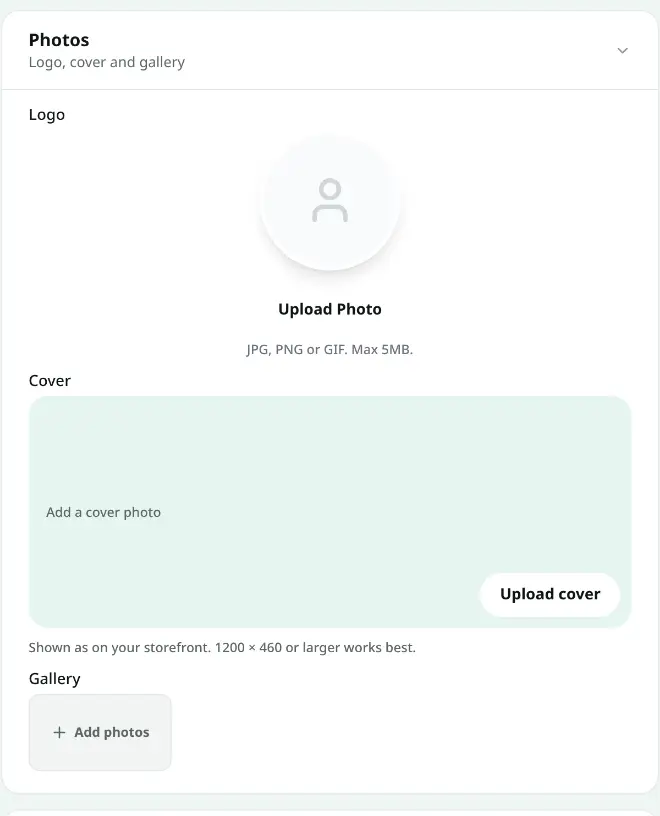
Add your logo and cover here. Once added, they show as they appear on your page. Choose Save changes at the bottom of the page.
Choose View storefront to open your page as members see it, or Copy link to share it.