Connect QuickBooks
Send a daily summary of your class sales to QuickBooks Online.
Open Settings and choose the Integrations tab.
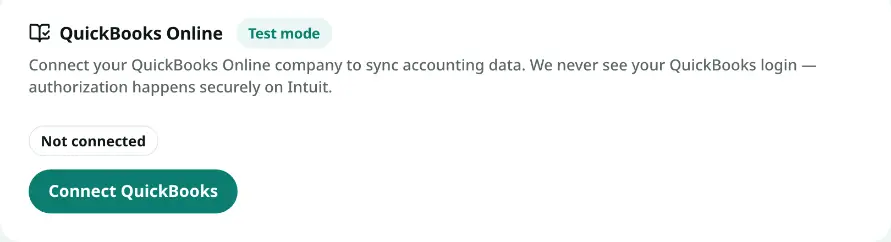
Under QuickBooks Online, choose Connect QuickBooks and sign in to Intuit. Thryve never sees your QuickBooks login.
Back in Thryve, the card shows Connected and your company name.
Under QuickBooks account mapping, choose the accounts to post to: income, refunds, processing fees, the deposit accounts and your default sales item. Each one can stay on the QuickBooks standard account.
Choose Save mapping.
The daily summary
Once syncing is on, Thryve posts one sales receipt per day with your paid card class bookings minus refunds. Each day is posted once, and missed days are caught up.
Turning syncing on
Syncing stays off until it is switched on for your studio. Contact us when your mapping is saved and we'll turn it on.
To stop, choose Disconnect on the QuickBooks Online card.